Tips & Tricks to Reduce Clicks: Proven Time Tracking & Billing Workflows That Boost Firm Efficiency
08/24/2026 By Taylor Dahlem

Now available on-demand!
With so much to offer in Bill4Time, every firm uses the platform a little differently. We’ve worked with thousands of legal professionals and pulled together the tips, tricks, and best practices that help firms get more done with less effort. Across time tracking, invoicing, payments, and reporting, there’s a good chance there are time-saving features that could make your firm’s tasks noticeably easier.
Running a busy practice doesn’t leave much time to dig into every feature on your own. In this recorded live session, “Tips & Tricks to Reduce Clicks: Proven Time Tracking & Billing Workflows That Boost Firm Efficiency”, Bill4Time’s Luke O’Halek and Lindsay Knight walk through the tips, tricks, and navigational shortcuts high-performing firms use to reduce clicks and increase efficiency.
You’ll see how firms log a full day of time in seconds and complete month-end billing in a fraction of the time with the timer tricks, entry shortcuts, and batch invoicing workflows top firms use to keep admin work from piling up. You’ll also learn how to jump to any matter, time entry, or activity in a single click by customizing your dashboard and reports you rely on every day.
Capturing a Full Day of Time in Seconds (2:53)
If you’re only logging the entries you remember, typing up descriptions after the fact, or forgetting to start a timer until you’re already ten minutes into a call, you’re not alone, but it’s likely costing your firm billable hours every week.
The good news is that Bill4Time has built-in shortcuts to solve this, so you can capture every billable hour, customized to fit your firm’s exact rates and workflows. Let’s take a look at a few common scenarios and our tips for improving your time-tracking process.
Pinned Timers: Start & Stop Tracking Active Matters Instantly (5:24)
Plenty of legal work runs for weeks or months at a time. Rather than searching for or setting up a new timer every day, you can pin a timer for specific clients or matters and start and stop it the moment you pick that work back up. It keeps your time tracking going without interrupting the work itself.
Bulk Time Entry: Log a Whole Day at Once (7:03)
The workday gets busy, and time doesn’t always get logged the moment it happens. If you tend to catch up on entries at the end of the day or week, Bill4Time lets you create and update time entries in bulk right from the Dashboard or the Time & Expense tab, so you’re handling the whole set at once instead of line by line.
Turn Calendar Events into Billable Time Entries (10:45)
A lot of billable time already lives on your calendar. Bill4Time makes it easy to convert an Outlook or Google Calendar event straight into a time entry, so you’re not manually re-typing details you’ve already captured on your calendar.
Auto-Text Abbreviations: Enter Whole Descriptions in a Few Keystrokes (13:27)
Most of us prefer to save time by using keyboard shortcuts to type faster; this is no different in Bill4Time. If you have standard descriptions you regularly include in your correspondence, you can set up auto-text abbreviations in your platform settings, then type a short hot key that expands into the full text automatically.
Adding Speed & Accuracy to Month-End Billing (16:29)
Once time is captured accurately, the next step is billing it just as efficiently.
For a lot of firms, month-end billing can become a time-consuming ritual. You’re building invoices one client at a time, double-checking trust balances by hand, and sending everything out individually.
This is where a few built-in shortcuts can give you the biggest chunk of your time back. Let’s walk through a few common billing scenarios and how Bill4Times batch billing workflows speed them up.
Batch Invoicing: Bill a Full Month in One Sweep (18:37)
Rather than generating invoices one client at a time, our batch invoicing feature lets you handle the whole set at once. You can knock out a month’s worth of invoices in minutes, which keeps everything for that billing period organized in a single place.
Apply Trust Disbursements Without Switching Screens (22:42)
If your firm manages client trust accounts, you’re often applying those funds around the same time you invoice. Bill4Time keeps that work in the same invoice batch: click over to the ‘Trust Payments’ tab to see available funds and apply disbursements right there, so you’re not moving between screens to reconcile balances.
Bulk Email Invoices & Send Reminders All at Once (23:50)
Once your invoices are finalized, the last step is getting them to clients and staying on top of what’s owed. You can email finalized invoices in bulk, either as a PDF or a direct link, and sort by unpaid or overdue to send a whole batch of reminders instead of following up with each client individually.
Navigating Bill4Time in Fewer Clicks (26:33)
So far, we’ve covered specific time-saving tips inside our time tracking and billing functionality. Those matter on their own, but the real payoff is being able to reach any part of the platform in a fraction of the clicks.
Almost everything you do in Bill4Time has two paths. Most people know the ‘standard route’ of clicking through tabs and menus to find a client, a matter file, or a time entry. But there’s also a set of shortcuts that take you there directly.
Custom Dashboard Cards: Access All Key Data on One View (28:49)
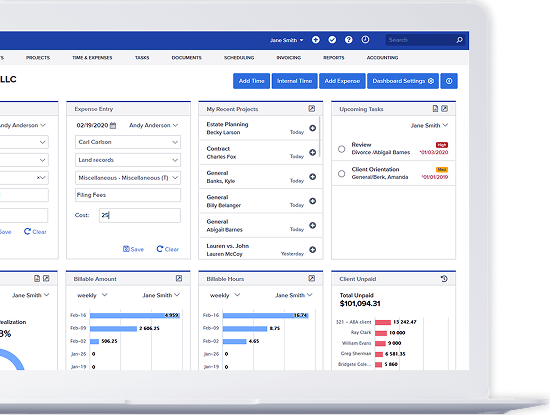
Your dashboard can be customized with cards that highlight the data you reach for most, such as timers, tasks, time and expense entries, and your upcoming schedule. Rather than navigating menus to pull the information, Bill4Time makes it easy to view and access it all on the first screen you see after logging in.
Hyperlink Shortcuts: Jump to Any Record in One Click (29:59)
Records like clients, matters, and tasks are hyperlinked throughout the platform. Take a common scenario like needing to get back to a client’s profile while reviewing a prebill. The familiar ‘scenic’ route through Bill4Time’s menus and filters runs about 5 clicks, on average, while the shortcut sits right on the invoice, where the client profile is linked at the top and takes you to the same spot in 4 fewer clicks. This is just one example, and we highlight more in the webinar recording.
Favoriting Reports: Access Your Go-To Report Settings in Seconds (31:55)
If you run the same report with the same filter sets every week, you can save that setup as a favorite report. From then on, you can return to those exact filter views in a single click without having to rebuild the report each time.
Watch the Full Recording to Learn More
When used across every client, every entry, and every report you open in a day, these shortcuts add up fast and result in real time savings.
Get a clearer picture of how Bill4Time’s proven workflows make it easy to track time, increase billing efficiency, and get paid faster by watching the full recording of our live session.